A static website can be visually simple or highly expressive, but either version needs an intentional accessibility review. Bright colors, large headings, and motion do not automatically make content easier to use. Nor does the absence of a database guarantee that navigation works with a keyboard or that images communicate their meaning. Review the delivered pages themselves, using representative tasks and more than one way of interacting with them.
This guide provides a practical first review, not a certification or a substitute for a full assessment. Its purpose is to help a small team find concrete issues before publication and record what remains to be checked. Keep observations specific: name the page, describe the action, state what happened, and identify the expected behavior. That record is more useful than a general note saying the website needs accessibility improvements.
Define the scope of your review
Choose a representative set of pages. Include the homepage, a long article, a topic archive, a contact page, and any page with a different navigation pattern. Add examples with long headings or substantial images. Shared templates can make testing efficient, but do not assume that every page using the same template contains equally accessible content. A missing image description or confusing link label can still be unique to one article.
The W3C WAI Easy Checks resource offers a starting point for reviewing accessibility and emphasizes that preliminary checks do not establish comprehensive conformance. Use that distinction in your own notes. State which pages, browsers, viewport sizes, and interaction methods you tested. A clearly scoped review is more credible and useful than a sweeping claim based on a few automated results.
Read the page as a structured document
Begin with the content order. Identify the main heading, supporting section headings, navigation, primary content, and footer. Ask whether the sequence makes sense independently of the visual layout. A large piece of text may look like a heading without being marked up as one, while decorative text may accidentally create confusing structure. Inspect the actual document rather than inferring its meaning from font size alone.
For a long guide, compare the headings with the reader's likely questions. They should describe the content that follows and make the page easier to scan. Avoid skipping to an unrelated topic because a heading style happens to look attractive. On a static editorial site, a clear article outline is also an editing tool: it exposes repeated sections, missing explanations, and conclusions that introduce entirely new information.
Follow a complete keyboard path
Put the pointer aside and move through the page using the keyboard. Start at the top, find the main navigation, open any menus, follow a link, and return. Observe where focus appears and whether the current control is visible. A test should include both entering and leaving an expanded menu. Record cases where focus disappears, moves unexpectedly, or becomes trapped in an area without an obvious exit.
Try the same path on the narrow-screen layout. Mobile navigation often uses a different structure from desktop navigation, so one does not prove the other works. Check that a menu control communicates whether the menu is open and that hidden links are not confusingly reachable. Where a skip link exists, use it and verify that it lands at the main content rather than behind the sticky header.
Inspect text at less comfortable sizes
Increase text size or use browser zoom and revisit the representative pages. Look for text that is clipped, overlaps another element, or disappears behind a fixed control. Long brand names and multi-part navigation labels are useful stress cases. A design that works at its default size may reveal problems when the reader needs larger text or when the available viewport becomes narrower.
Evaluate reading comfort as well as obvious clipping. An article can technically fit while using lines that are difficult to follow or paragraphs crowded by decorative elements. Compare the long-form page with the short homepage. They may need different text widths and spacing. The Page Static fundamentals guide connects these content-structure decisions with the broader goal of making prepared pages useful to their readers.
Check color and visual emphasis
Review foreground and background combinations in the places where text actually appears. A brand palette is not a contrast result: the same text color can work on one section and fail on another. Pay special attention to small metadata, navigation states, link text, and text over images. Use an appropriate contrast-checking tool and record the specific combinations, rather than judging only by how vivid the palette looks.
Do not use color as the only indication of meaning. A selected navigation item can also have an underline or another visible state. A warning should be understandable from its text, not only from a red background. In an editorial design, keep decorative color shifts separate from content that a reader must interpret precisely. The visual system should reinforce the information instead of making the reader decode it.
Review images in their actual context
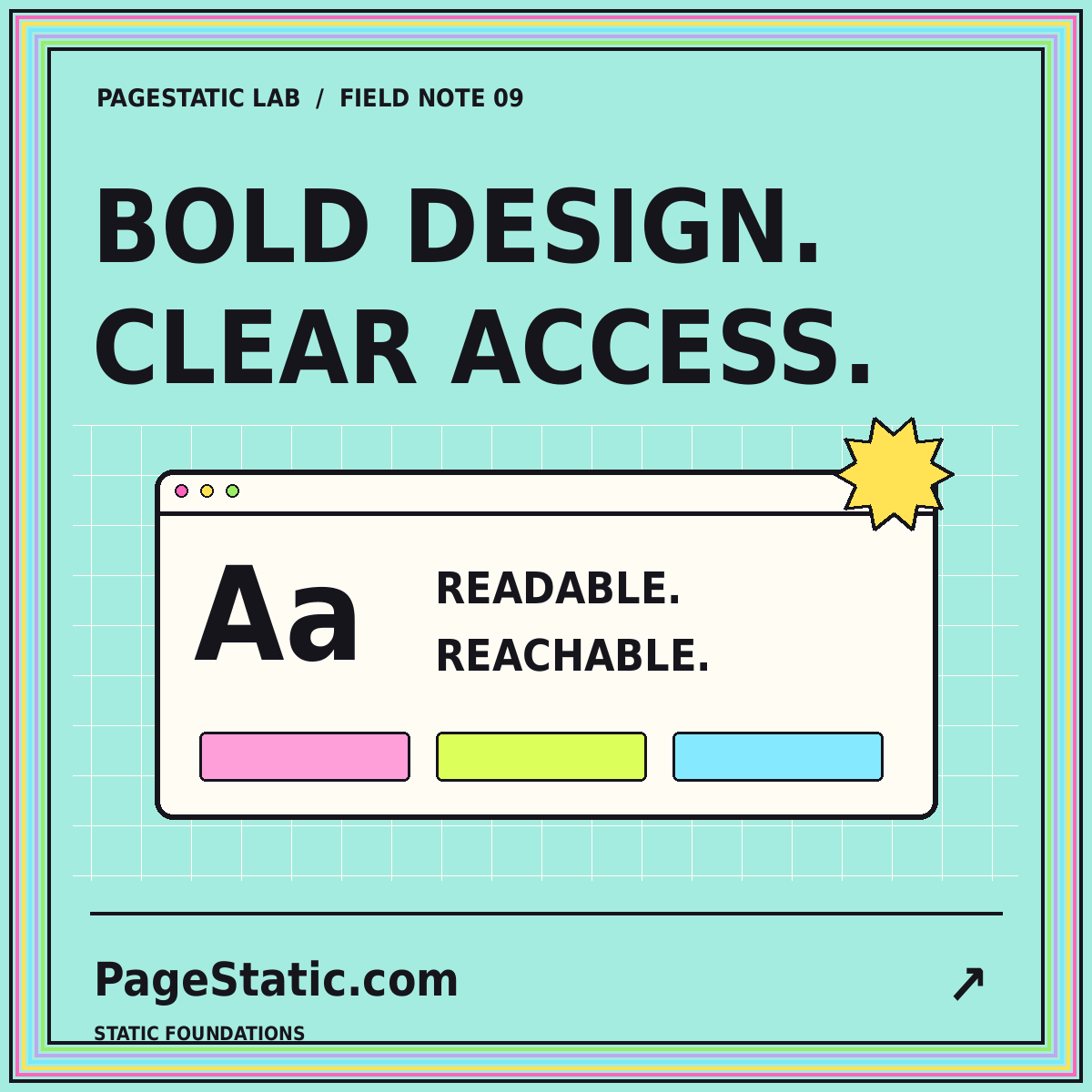
For each meaningful image, ask what information a reader would miss without seeing it. Write alternative text that serves that purpose, taking nearby text into account. A featured typography card may repeat an article title already printed beside it; a diagram may explain a relationship that requires more description. The correct treatment depends on the image's role, not a rule that every file needs a long caption.
Keep important words available as text
Do not place an essential instruction only inside a graphic. Include the instruction in the page's HTML content as well. Check that a card remains understandable when its image does not load. Decorative graphics should not add repetitive noise to the reading experience. For a gallery, inspect the label and link destination together so a reader can understand what activating the card will do.
Examine motion and sticky elements
Watch the page long enough to notice repeated animation, drifting decorations, or automatic scrolling. Ask whether each effect contributes to understanding or merely competes with reading. Provide a reduced-motion experience where motion is used. In your review notes, record the actual behavior under the relevant browser or operating-system preference, rather than assuming a CSS rule has solved every motion-related issue.
Sticky headers deserve their own check. Follow an in-page link and confirm that the destination heading is visible. Repeat after opening the mobile menu and after changing text size. A header whose height changes across breakpoints can cover different amounts of content. Test the landing position in the actual layout, and make sure the navigation itself remains usable when the screen has limited vertical space.
Combine tools with human observation
Automated checks can identify certain structural issues and provide repeatable regression tests. Use them to support the review, not to replace reading and interaction. A tool can detect a missing attribute without understanding whether the existing description is helpful. It may not know that two differently labeled links lead to the same unexpected destination or that an article's heading order obscures the intended process.
Where possible, include testing with people who use relevant assistive technologies. Make the scope and limitations of that work explicit. A small team may not be able to perform every evaluation before an initial release, but it can still avoid overstating what has been verified. Keep unresolved findings visible and assign responsibility for follow-up instead of hiding them behind a generic claim of accessibility.
Conclusion: keep the checklist alive
An accessibility review should produce a repair list, a record of checked behavior, and a clear statement of remaining uncertainty. Prioritize issues that block important tasks, then revisit the affected pages after changes. Store the checklist alongside the site's maintenance process so new articles, navigation edits, and design revisions receive appropriate attention. Accessibility is connected to ongoing content work, not only the first visual design.
Use the same representative tasks when comparing later releases. For projects involving generated layouts, the AI website review guide explains how to separate appearance from verification. A static site becomes more dependable when the team can explain what it tested, show the resulting improvements, and keep learning from readers whose needs are not fully represented by the default desktop view.